How to track your pickleball matches
Finished a match? Save who played and the final score of each game in My Pickle Points. Open History later to pull up the scorecard.
Get My Pickle Points1. Create or open your game
These steps show the My Pickle Points app preview. When you create a match, the app adds you as the first player.
From the home screen, tap Create Event. Enter Weekend Doubles as the Event Title, choose Open Play under Event Type, and select Doubles under Game Type.
For a scheduled match with players already added, the host opens What’s Next and taps Start Match when the event goes live. Other players can tap Join Match to view the scorecard.
2. Add the players
For a new match, tap Add Players to Game. On Add Players to Event, add your partner first, then both opponents, and tap Next. In the example below, Casey and Jordan play Alex and Sam.
3. Enter the final scores
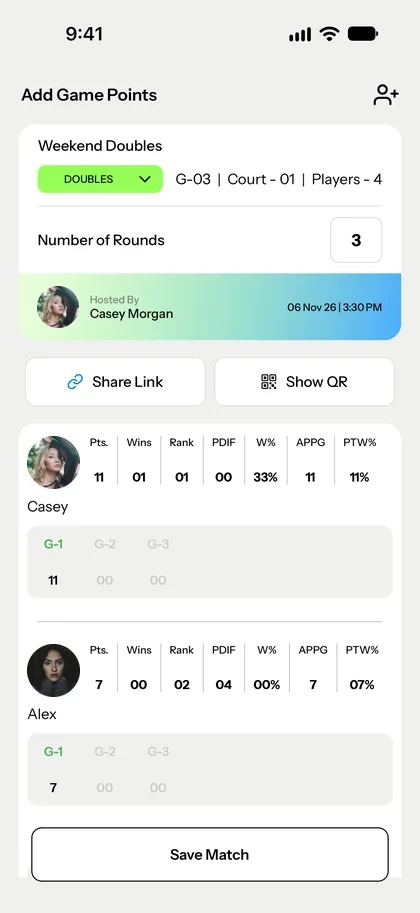
On Add Game Points, set Number of Rounds to the number of games you played. Tap a game score to open Add Point. Record the points each player earned in their own row. The app adds the two players’ points to get each team’s score. If Casey earns six points and Jordan earns five, their team has 11. To keep individual stats accurate, tally each player’s points as you play so you have them when you enter the final score. Tap Save when you’ve entered the scores.
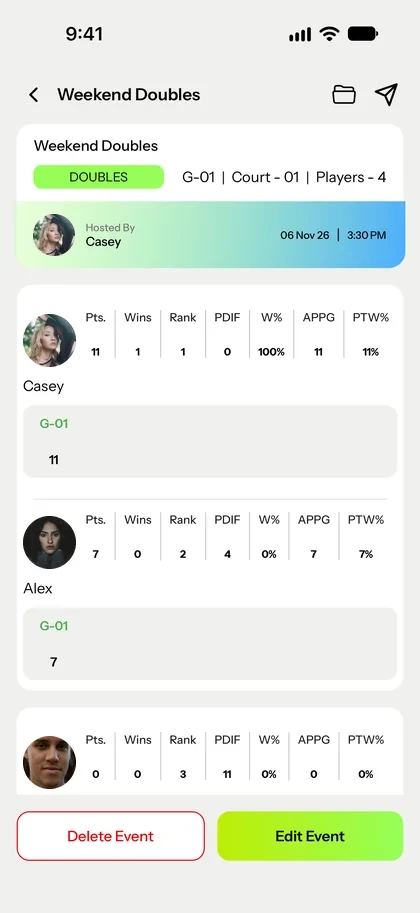
For example, a three-game match could end with the team totals below. The separate app preview shows three rounds set up, with scores in Game 1. In History, the saved preview shows the one game with scores.
| Game | Casey and Jordan | Alex and Sam |
|---|---|---|
| 1 | 11 | 7 |
| 2 | 8 | 11 |
| 3 | 11 | 6 |
4. Save and find the match
Back on Add Game Points, tap Save Match. In History, tap Weekend Doubles to open the saved scorecard and review the results by game.
Learn how to keep score in pickleball